Hello Everyone,
In this short guide we will go through Step by Step instructions on how to access and setup the Synology Drive Client on our DVDI's through Kasm. If you do not know how to access a DVDI or how to get onto Kasm itself please follow the instructions on the guide here.
Instructions:
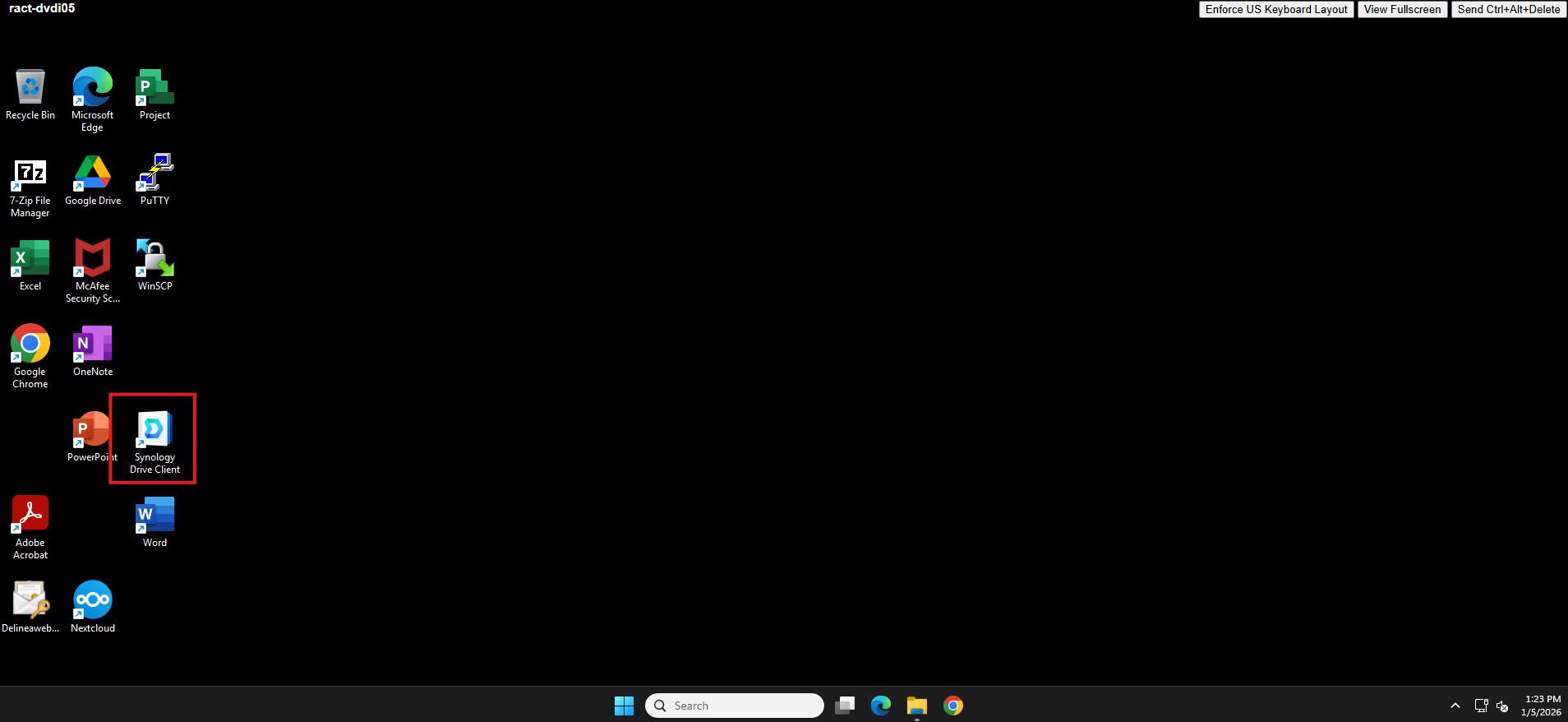
Synology Drive Client should open up automatically on your computer, if it does not navigate to the shortcut and open it.
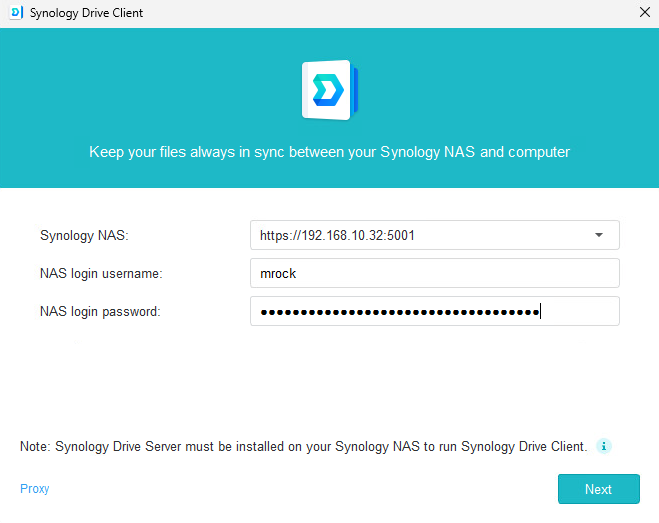
Populate the Synology Drive client with the information shown below keeping the Synology NAS area the same and using your personal information for the username and password.(It should be the same as the one you used to log into the computer).
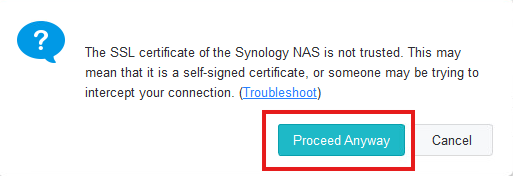
Select Proceed Anyway on the pop up that appears.
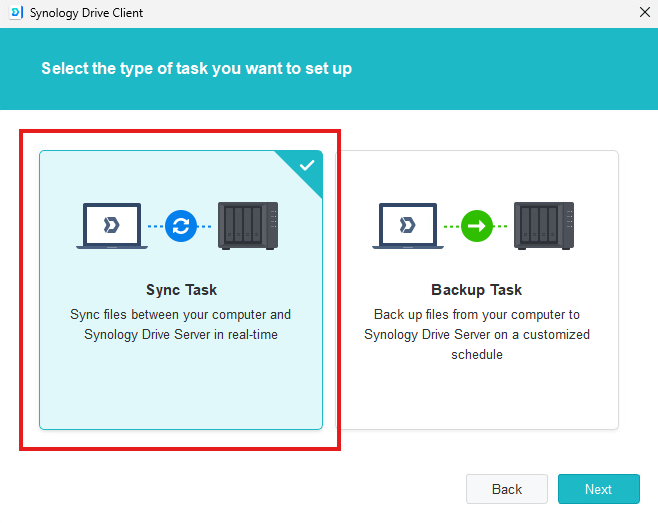
Select Sync Task then click Next.
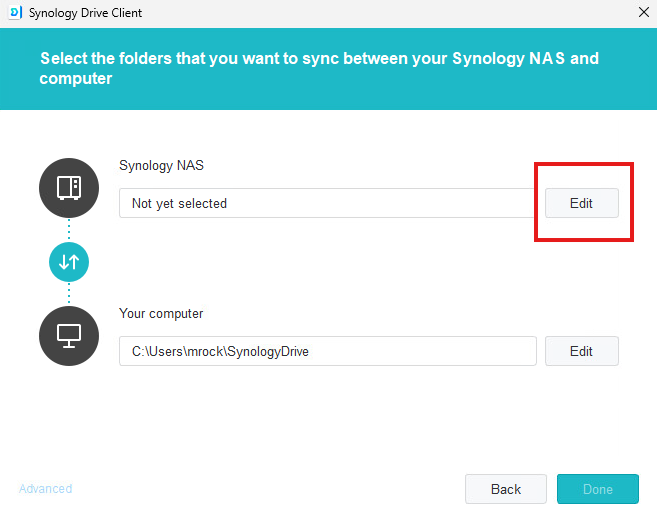
Select Edit.
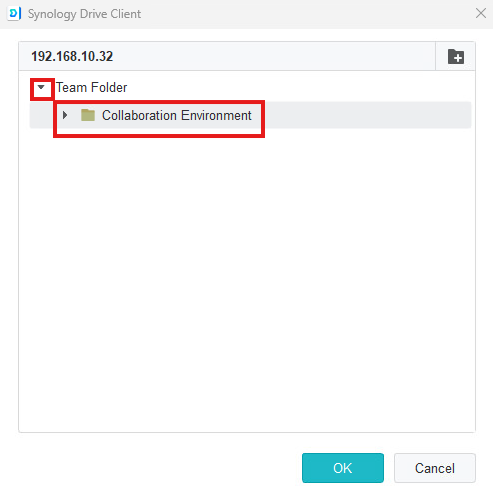
Click the drop down on Team folder to select Collaboration Environment then select Ok and then click Next.
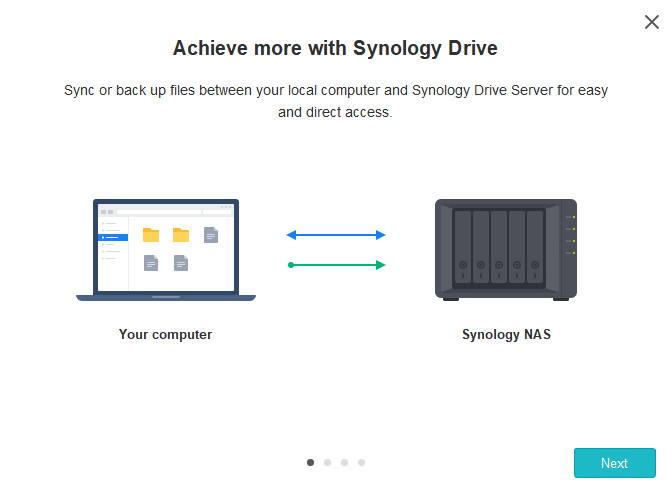
Click Next until all the prompts are gone, and it should automatically open the folders you have access to and sync them in real time to your computer.
Was this article helpful?
That’s Great!
Thank you for your feedback
Sorry! We couldn't be helpful
Thank you for your feedback
Feedback sent
We appreciate your effort and will try to fix the article